Enterprise workflow OS

NextGen Task Manager

A polished command center for planning, assigning, tracking, and analyzing work across high-performing teams.

360°Project visibility
RBACRole-safe operations
LiveKanban and analytics
NextGenTask LogoBE ORGANIZED
nextgentask.co.in/dashboard
NextGen Task Manager dashboard preview
Workload health

Smart visibility across projects, teams, and delivery risk.

About NextGenTask Manager

NextGen Task Manager is a comprehensive, enterprise-grade project and task management solution built to streamline organizational workflows. By bridging the gap between high-level strategic planning and day-to-day execution, NextGen provides a centralized hub where teams can collaborate, track progress, and achieve their goals with maximum efficiency.

Whether you are managing complex multi-team projects, tracking individual assignments via a Kanban board, or analyzing organizational workload through visual analytics, NextGen Task Manager equips you with an intuitive, responsive, and highly customizable interface. Key capabilities include robust role-based access control, deep hierarchical organization (departments and teams), seamless cross-functional reporting, and dynamic task lifecycle tracking.

Designed for scalability and user satisfaction, NextGen Task Manager transforms chaos into structured, actionable intelligence—empowering your workforce to focus on what truly matters: delivering exceptional results.

Role-Based Access & Privileges

Security and operational hierarchy are core to NextGen Task Manager. The system employs strict Role-Based Access Control (RBAC) to ensure users only interact with data and features appropriate to their organizational standing. The three primary roles are:

  • Admin: The highest level of access. Admins have complete control over the system, including the ability to manage all users, oversee global organizational settings, assign roles, and access sensitive profile data (such as Date of Joining, Employee IDs, and Reporting chains). Admins can view, edit, and delete any project, task, or team across the entire organization.
  • Manager: Designed for team leaders and department heads. Managers possess elevated privileges to oversee their specific projects and direct reports. They can create tasks, assign work to associates, view team workloads, and manage project milestones. While they have broad operational control within their domains, they cannot modify critical global system settings or sensitive employee profile configurations.
  • Associate: The foundational role for individual contributors. Associates are granted focused access to execute their day-to-day responsibilities. They can view projects they are assigned to, update task statuses on the Kanban board, log activity, and manage their basic personal profile data. Associates are restricted from administrative actions such as altering deadlines or reassigning tasks to others.
1. Landing Page & Authentication

A. Navigating the Public Space

The public space of NextGen Task Manager consists of three core pages:

  • Product Page (Landing): Highlighting core marketing assets, dark/light compatibility, sleek gradients, and responsiveness.
  • Signup Page: Allows new users to easily register by entering their details.
  • Login Page: Secured gate where registered users can input their email and password.

B. Standard Login Workflow

  1. Direct your browser to the NextGen Task Manager web application.
  2. Click Login on the top navigation header.
  3. Input the following standard administrative/manager credentials:
    • Email Address: joy@yopmail.com
    • Password: tesXXXXX
  4. Toggle the Theme Selector at the top right to choose between Dark/Light mode before logging in, if desired.
  5. Click the secure Login button.

2. Unified Command Center: Dashboard

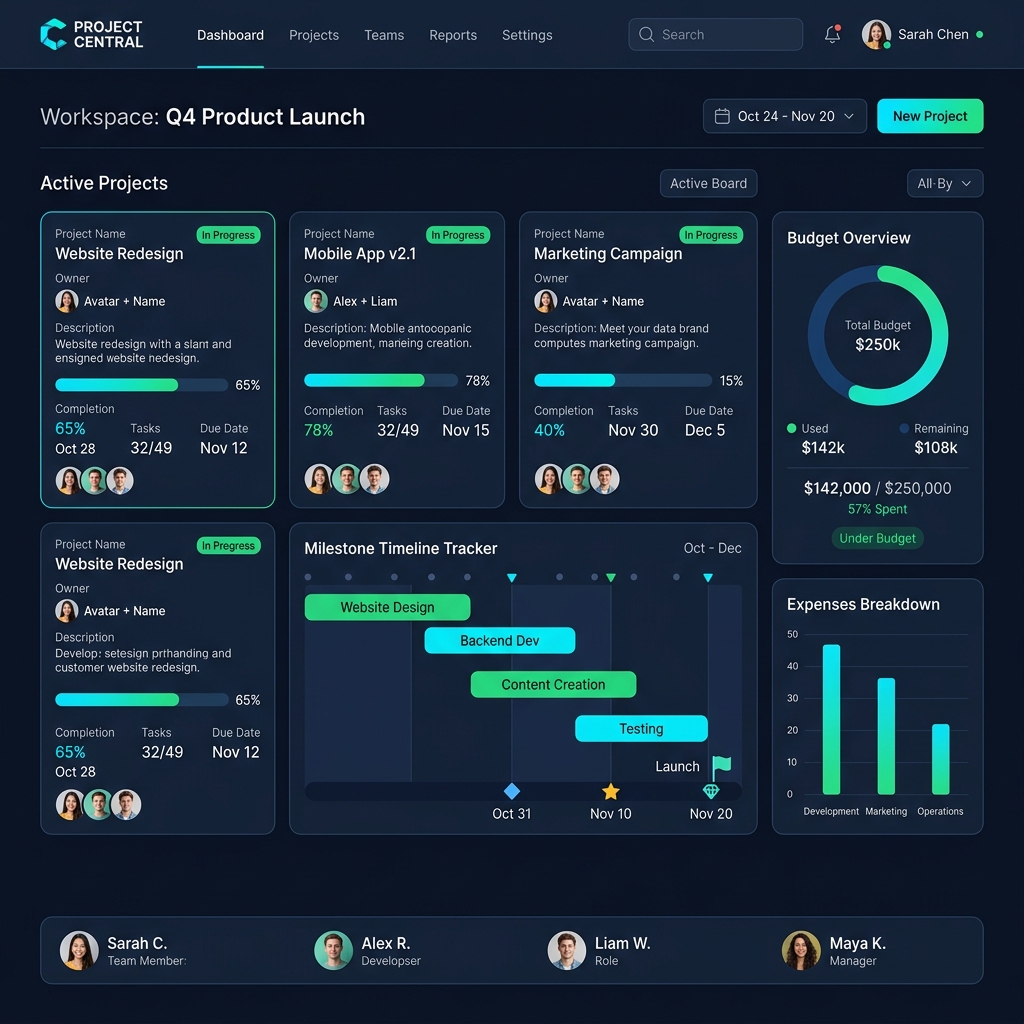
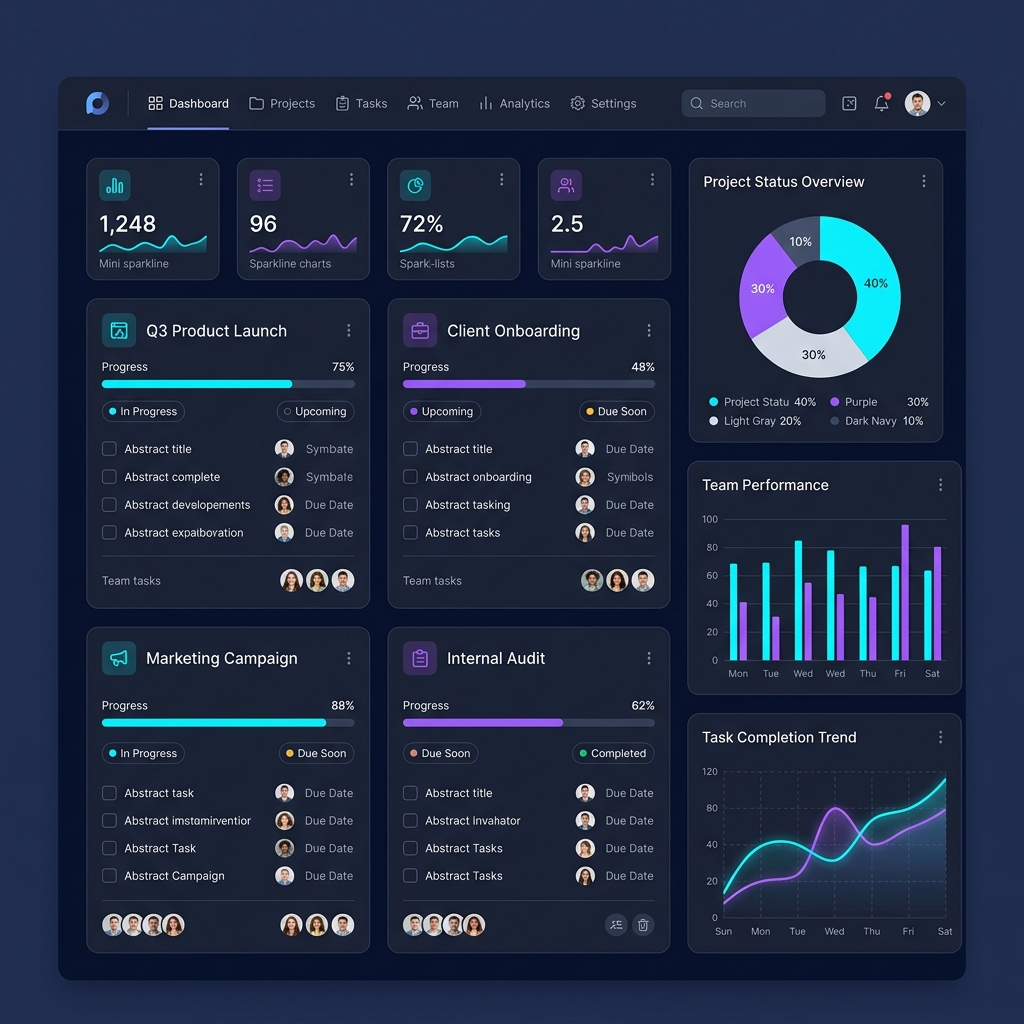
Once logged in, you will be greeted by the Dashboard, the central control hub of the application.

A. Core Features & Metrics

  • Active Summaries: Live indicators showing Total Projects, Active Tasks, Assigned Members, and Budget Burn status.
  • Dynamic Project Filtering: Locate the project dropdown filter at the top of the dashboard. Changing the selected project dynamically updates all downstream task counts, completion percentages, and visual workload distributions in real-time.
  • Quick-Access Navigation Sidebar: Use the left collapsible sidebar to jump to all functional tabs, such as Tasks, Kanban, Analytics, Team, User Management, and Settings.
NextGen Task Manager Dashboard Snapshot
Tasks

The dashboard supports dynamic filtering and quick actions for most entities.

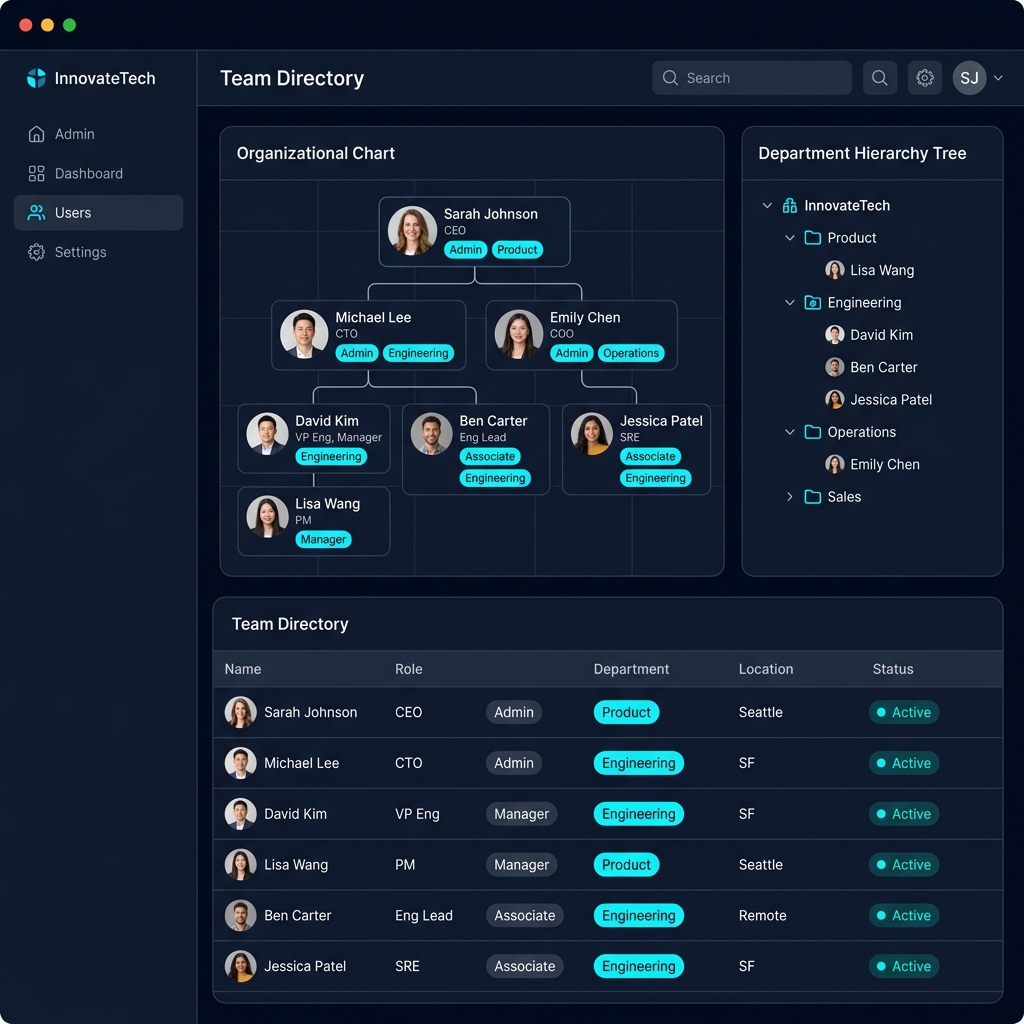
3. User & Organizational Directory Management

Manage your company structure securely using the User Management portal (available to Administrators and Managers).

A. Create a Department

  1. Navigate to User Management in the left sidebar.
  2. Select the Departments tab at the top.
  3. Click the Add Department button and input a unique Department Name, select the Department Head, add a brief description, set the status to Active, and click Add Department.

B. Create a Team

  1. Click the Teams tab under User Management.
  2. Click the Add Team button and choose a Team Name, parent Department, assign a Team Lead, set initial status and description, then click Create Team.

C. Create a User

  1. Click the Users tab and choose Add User.
  2. Input first and last name, email, job title, role, department and team, then click Save.
User Directory & Org Structure Preview

4. Project & Milestone Management

A. Create a Project

  1. Navigate to Projects and click Create Project.
  2. Fill in Project Name, Description, Total Budget, assign a Project Manager, select start/end dates and priority, then click Create Project.

C. Milestone Tracking

Under each project's details you will find the Milestone Progress Tracker showing major phase gates.

Project Milestone ProgressPlanningDevTestingDeployLive
Project Milestone Tracking Dashboard

5. Task & Subtask Lifecycle Management

The granular level of daily operations is executed via the Task Management panel.

Task Lifecycle

Click any node to view the related section or start the workflow.

ProjectCreate TaskIn ProgressReviewDone
ActionTargetFields RequiredKey Behavior
Create TaskParent ProjectTitle, Description, Priority, Assignee, Status, DatesAutomatically adds the task to both the list and Kanban board.
Edit TaskActive TaskStatus, Assignee, Priority, DescriptionLive-syncs updates across all views immediately.

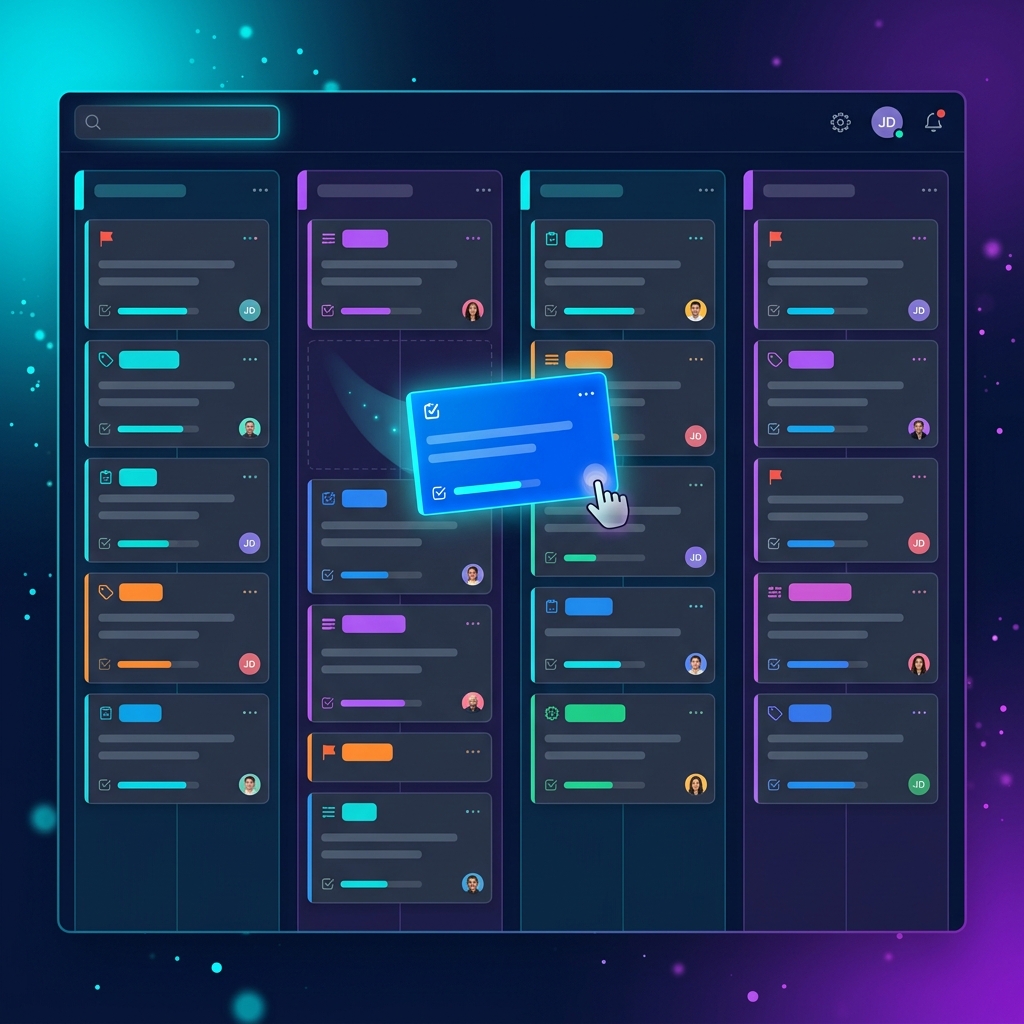
6. Interactive Kanban Board

  1. Navigate to the Kanban Board tab on the sidebar.
  2. The board is divided into four columns: TODO, IN_PROGRESS, REVIEW, and DONE.
  3. Drag & drop task cards between columns. Drops trigger a secure update to the server to persist state.
Kanban Board Drag & Drop Interface

7. Focus Mode Panel

  1. Select Focus from the navigation sidebar.
  2. Create subtasks inline and check them off as you complete them to maintain peak daily velocity.

8. Resource Allocation & Team Workload

A. Team Capacity Dashboard

Use filters to select Departments and Teams. The page displays capacity index, current tasks and average completion times.

Team Workload Distribution70%Engineering80%Design50%QA90%DevOps

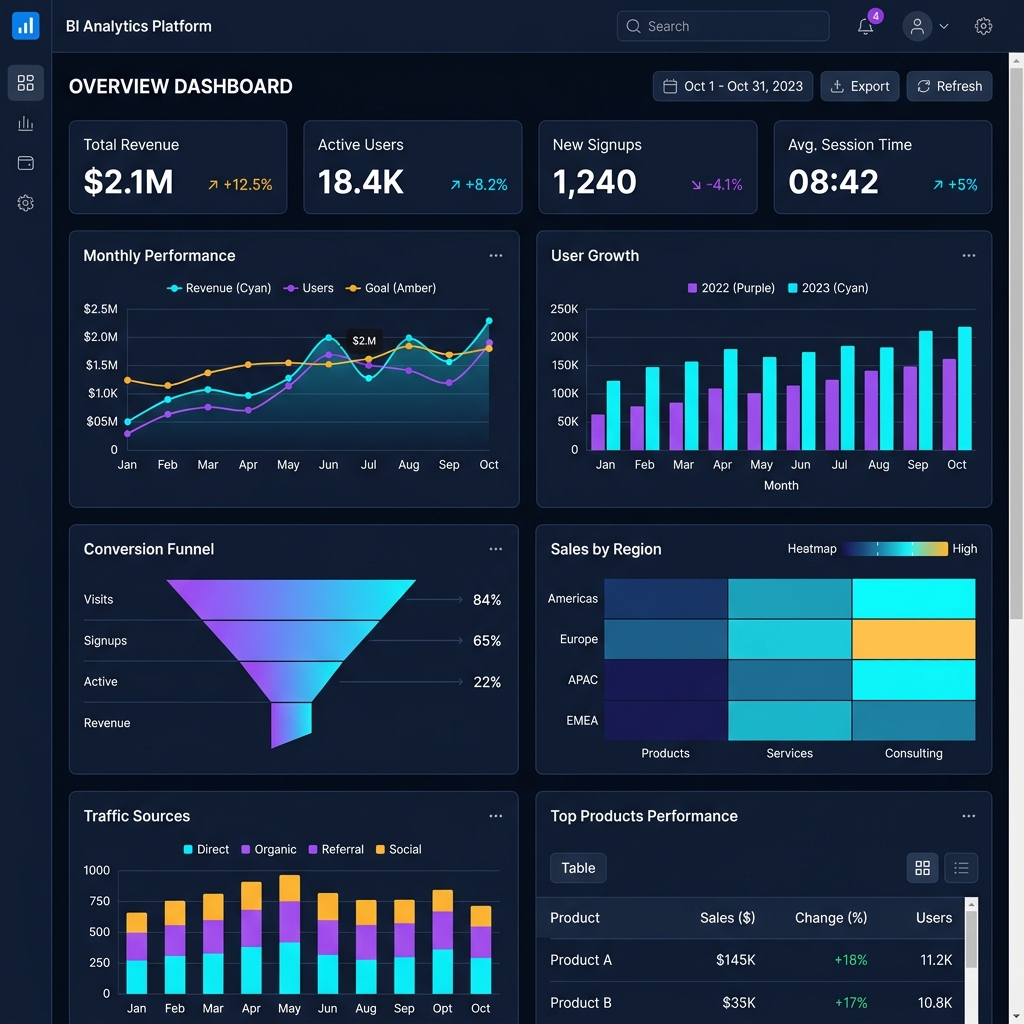
9. Enterprise Analytics & Visual BI

  • Project Budget Analysis
  • Resource Utilization Heatmap
  • Project Performance Overview
Analytics BI Dashboard Screenshot

10. Personal Settings & Profile Customization

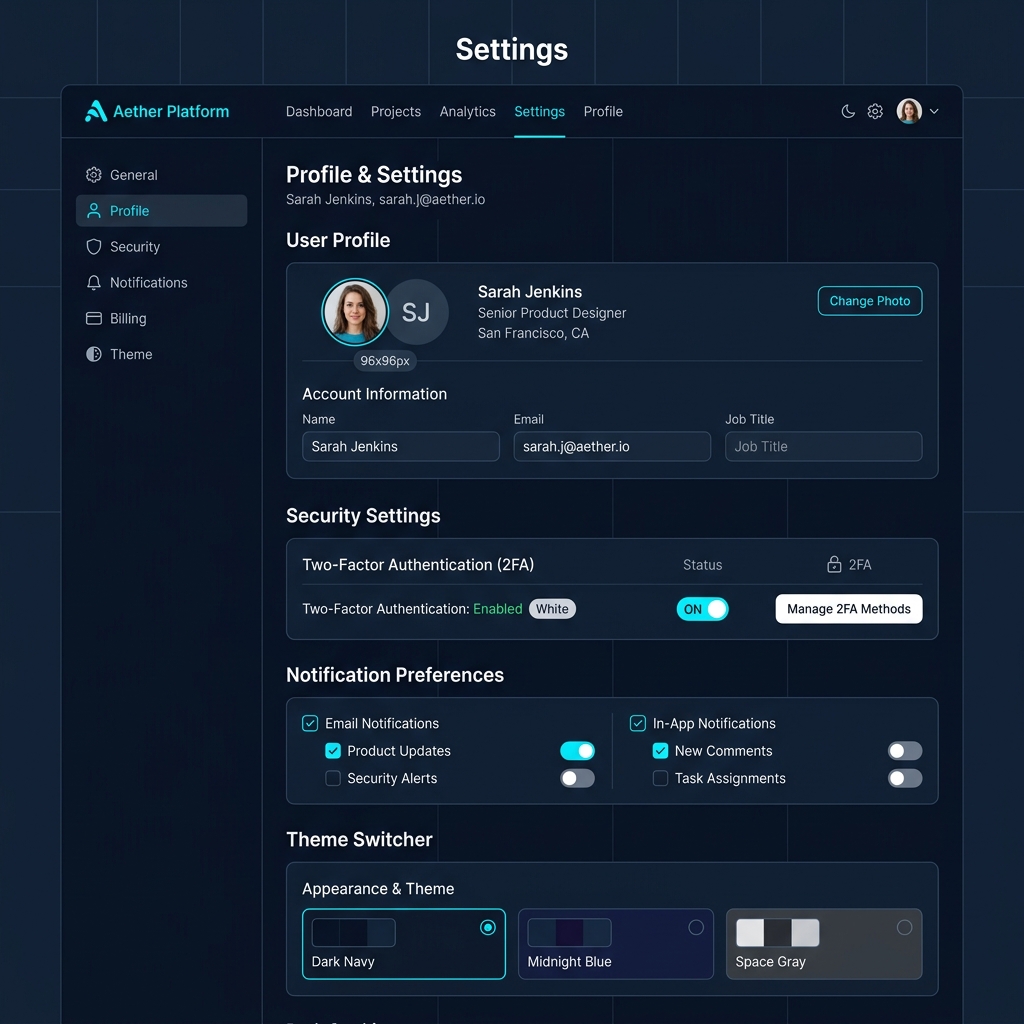
A. Editing Profile Information

  1. Navigate to Account Settings > Profile and update your details.
  2. Upload a profile picture (png/jpg/jpeg) and click Save Changes.

B. Configuring Account Security & Changing Password

  1. Click Security in Account Settings and follow the Change Password workflow to update your password.
  2. Enable Two-Factor Authentication (2FA) to secure your account via an authenticator app.
Settings & Profile Configuration Panel

11. Data Cleanup: Safe Deletion Workflows

To ensure data integrity, deletions must follow hierarchical rules.

graph TD
    A[Delete Subtask] --> B[Delete Task]
    B --> C[Delete Project]
    C --> D[Delete User]
    D --> E[Delete Team]
    E --> F[Delete Department]

12. Frequently Asked Questions (FAQ)

Q1: Why does a Department delete fail?

A department cannot be deleted if there are active teams or employees still assigned to it. Reassign personnel before deleting the department.

Q2: Why is a team member's status shown as "Overloaded" on the Workload page?

The overload status is triggered when capacity utilization exceeds 90%.

Q3: How do I change between Light and Dark mode?

Use the Theme Toggle in the top-right header or in Account Settings to switch themes.

Q4: I uploaded my profile picture but it isn't appearing. What should I do?

Ensure the file is a valid image and within size limits. Refresh the page to re-fetch the image.

Q5: How is Project Variance calculated on the Analytics page?

Project Variance measures the difference between actual progress and the original schedule. Positive variance means the project is ahead; negative means delayed.